简介
本指南演示如何使用 Visual Studio Code 网页客户端在 GitHub Codespaces 中设置示例 PHP 项目。它将引导您完成在 Codespace 中打开项目以及添加和修改预定义开发容器配置的过程。
完成本教程后,您将能够使用 VS Code 网页客户端或 VS Code 桌面应用程序将开发容器配置添加到您自己的代码库。
有关开发容器的更多信息,请参阅“开发容器简介”。
步骤 1:在 Codespace 中打开项目
-
如果您尚未登录,请登录 GitHub.com。
-
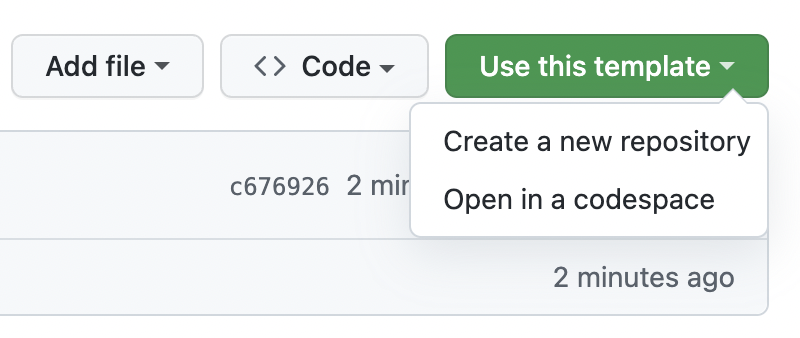
点击**使用此模板**,然后点击**在 Codespace 中打开**。

创建 Codespace 时,您的项目将在专用于您的远程虚拟机上创建。默认情况下,您的 Codespace 容器包含许多语言和运行时,包括 PHP。它还包含一组常用工具,例如 Composer、XDebug、Apache、pecl、nvm、git、lynx 和 curl。
您可以通过调整 vCPU 和 RAM 的数量、添加点文件以个性化您的环境或修改已安装的工具和脚本来自定义您的 Codespace。有关更多信息,请参阅“自定义您的 Codespace”。
GitHub Codespaces 使用名为 devcontainer.json 的文件来配置在 Codespace 中工作时使用的开发容器。每个存储库可以包含一个或多个 devcontainer.json 文件,以便为您提供在 Codespace 中处理代码所需的确切开发环境。
启动时,GitHub Codespaces 使用 devcontainer.json 文件以及构成开发容器配置的任何相关文件来安装工具和运行时,并执行项目所需的其它设置任务。有关更多信息,请参阅“开发容器简介”。
步骤 2:添加开发容器配置
GitHub Codespaces 的默认开发容器(或“开发容器”)将允许您成功处理类似于 vscode-remote-try-php 的 PHP 项目。但是,我们建议您配置您自己的开发容器以包含项目所需的所有工具和脚本。这将确保您的存储库中所有 GitHub Codespaces 用户都能拥有完全可重复的环境。
要设置您的存储库以使用自定义开发容器,您需要创建一个或多个 devcontainer.json 文件。您可以从 Visual Studio Code 中的预定义配置模板添加这些文件,也可以自己编写。有关开发容器配置的更多信息,请参阅“开发容器简介”。
-
访问 Visual Studio Code 命令面板(Shift+Command+P / Ctrl+Shift+P),然后开始键入“add dev”。点击**Codespaces:添加开发容器配置文件**。

-
点击**创建新的配置**。
-
在此示例中,您从中创建 Codespace 的模板存储库已包含开发容器配置,因此会显示一条消息告诉您配置文件已存在。我们将覆盖现有的配置文件,因此请点击**继续**。
-
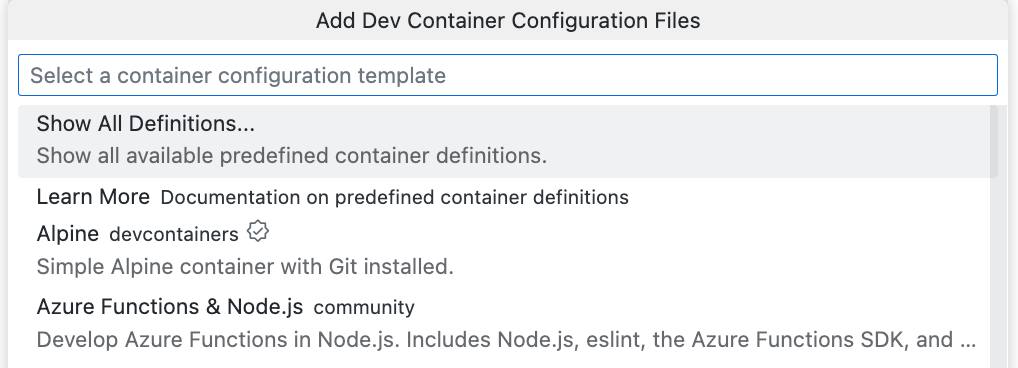
点击**显示所有定义**。
-
键入
php并点击**PHP**。如果您的项目使用特定工具,则可以使用其他选项。例如,**PHP 和 MariaDB**。 -
选择要用于项目的 PHP 版本。在本例中,选择标记为“(默认)”的版本。
-
将显示您可以安装的其他功能列表。我们将安装 GitHub CLI,这是一个用于从命令行与 GitHub 交互的工具。要安装此工具,请键入
github,选择GitHub CLI,然后点击**确定**,然后选择**保留默认值**。 -
将显示一条消息,告诉您开发容器配置文件已存在。点击**覆盖**。
将创建一个
devcontainer.json文件并在编辑器中打开。


自定义开发容器配置的详细信息
如果您查看 Visual Studio Code 资源管理器,您会看到已将 .devcontainer 目录添加到项目存储库的根目录,其中包含 devcontainer.json 文件。这是从此存储库创建的 Codespace 的主要配置文件。
devcontainer.json
您添加的 devcontainer.json 文件将包含 name、image 和 features 属性的值。包含一些额外的属性,您可能会发现它们很有用,但它们已被注释掉。
根据您选择的镜像,该文件看起来类似于以下内容:
// For format details, see https://aka.ms/devcontainer.json. For config options, see the
// README at: https://github.com/devcontainers/templates/tree/main/src/php
{
  "name": "PHP",
  // Or use a Dockerfile or Docker Compose file. More info: https://containers.dev/guide/dockerfile
  "image": "mcr.microsoft.com/devcontainers/php:1-8.2-bullseye",

  // Features to add to the dev container. More info: https://containers.dev/features.
  // "features": {},

  // Configure tool-specific properties.
  // "customizations": {},

  // Use 'forwardPorts' to make a list of ports inside the container available locally.
  "forwardPorts": [
    8080
  ],
  "features": {
    "ghcr.io/devcontainers/features/github-cli:1": {}
  }

  // Use 'postCreateCommand' to run commands after the container is created.
  // "postCreateCommand": "sudo chmod a+x \"$(pwd)\" && sudo rm -rf /var/www/html && sudo ln -s \"$(pwd)\" /var/www/html"

  // Uncomment to connect as root instead. More info: https://aka.ms/dev-containers-non-root.
  // "remoteUser": "root"
}
- name:您可以将开发容器命名为任何您想要的名字。提供默认值。
- image:容器注册表(DockerHub、GitHub 容器注册表 或 Azure 容器注册表)中将用于创建 Codespace 开发容器的镜像名称。
- features:一个或多个对象的列表,每个对象都引用一个可用的开发容器功能。功能是独立的、可共享的安装代码和开发容器配置单元。它们提供了一种简单的方法来向您的开发容器添加更多工具、运行时或库功能。您可以在 VS Code 中或 GitHub 上的
devcontainer.json编辑器中添加功能。有关更多信息,请点击“向 devcontainer.json 文件添加功能”中的**Visual Studio Code** 或**Web 浏览器**选项卡。 - forwardPorts:此处列出的任何端口都将自动转发。有关更多信息,请参阅“在您的 Codespace 中转发端口”。
- postCreateCommand:使用此属性可在创建 Codespace 后运行命令。这可以格式化为字符串(如上所示)、数组或对象。有关更多信息,请参阅开发容器网站上的开发容器规范。
- customizations:此属性允许您在使用特定工具或服务在 Codespace 中工作时自定义它。例如,您可以为 VS Code 配置特定的设置和扩展。有关更多信息,请参阅开发容器网站上的支持工具和服务。
- remoteUser:默认情况下,您以 vscode 用户身份运行,但您可以选择将其设置为 root。有关可用属性的完整列表,请参阅开发容器网站上的开发容器规范。
其他开发容器配置文件
如果您熟悉 Docker,除了 devcontainer.json 文件外,您可能还希望使用 Dockerfile 或 Docker Compose 来配置 Codespace 环境。您可以通过在 devcontainer.json 文件旁边添加您的 Dockerfile 或 docker-compose.yml 文件来实现这一点。有关更多信息,请参阅开发容器网站上的使用镜像、Dockerfile 和 Docker Compose。
步骤 3:修改您的 devcontainer.json 文件
添加开发容器配置并基本了解其功能后,您现在可以进行更改以进一步自定义您的环境。在此示例中,您将添加以下属性:
- 创建开发容器后运行
composer install,以安装composer.json文件中列出的依赖项。 - 在此 Codespace 中自动安装 VS Code 扩展。
-
在
devcontainer.json文件中,删除关于功能的两个已注释的行。// Features to add to the dev container. More info: https://containers.dev/features. // "features": {}, -
按如下所示编辑
customizations属性以安装“Composer”扩展。JSONC // Configure tool-specific properties. "customizations": { // Configure properties specific to VS Code. "vscode": { "extensions": [ "ikappas.composer" ] } },// Configure tool-specific properties. "customizations": { // Configure properties specific to VS Code. "vscode": { "extensions": [ "ikappas.composer" ] } }, -
在
features属性后添加逗号。"features": { "ghcr.io/devcontainers/features/github-cli:1": {} }, -
取消注释
postCreateCommand属性并在末尾添加一些文本以运行命令composer install(如果存在composer.json文件)。(现有命令只是一些设置过程,允许 Apache 访问工作区中的文件。)JSONC // Use 'postCreateCommand' to run commands after the container is created. "postCreateCommand": "sudo chmod a+x \"$(pwd)\" && sudo rm -rf /var/www/html && sudo ln -s \"$(pwd)\" /var/www/html; if [ -f composer.json ];then composer install;fi"
// Use 'postCreateCommand' to run commands after the container is created. "postCreateCommand": "sudo chmod a+x \"$(pwd)\" && sudo rm -rf /var/www/html && sudo ln -s \"$(pwd)\" /var/www/html; if [ -f composer.json ];then composer install;fi"
根据您选择的镜像,devcontainer.json 文件现在应类似于以下内容:
// For format details, see https://aka.ms/devcontainer.json. For config options, see the
// README at: https://github.com/devcontainers/templates/tree/main/src/php
{
"name": "PHP",
// Or use a Dockerfile or Docker Compose file. More info: https://containers.dev/guide/dockerfile
"image": "mcr.microsoft.com/devcontainers/php:1-8.2-bullseye",
// Configure tool-specific properties.
"customizations": {
  // Configure properties specific to VS Code.
  "vscode": {
    "extensions": [
      "ikappas.composer"
    ]
  }
},
// Use 'forwardPorts' to make a list of ports inside the container available locally.
"forwardPorts": [
8080
],
"features": {
  "ghcr.io/devcontainers/features/github-cli:1": {}
},
// Use 'postCreateCommand' to run commands after the container is created.
"postCreateCommand": "sudo chmod a+x \"$(pwd)\" && sudo rm -rf /var/www/html && sudo ln -s \"$(pwd)\" /var/www/html; if [ -f composer.json ];then composer install;fi"
// Uncomment to connect as root instead. More info: https://aka.ms/dev-containers-non-root.
// "remoteUser": "root"
}
-
保存您的更改。
-
访问 VS Code 命令面板(Shift+Command+P / Ctrl+Shift+P),然后开始键入“rebuild”。点击**Codespaces:重建容器**。

提示
您可能偶尔需要执行完全重建以清除缓存并使用新的镜像重建容器。有关更多信息,请参阅“在 Codespace 中重建容器”。在您的 Codespace 内重建可确保您的更改在您将更改提交到存储库之前按预期工作。如果某些内容确实导致失败,您将被放置在一个具有恢复容器的 Codespace 中,您可以从中重建以继续调整您的容器。
重建开发容器后,您的 Codespace 再次可用时,将运行
postCreateCommand,安装任何 Composer 依赖项,“Composer”扩展将可用。

步骤 4:运行您的应用程序
在上一节中,您修改了 postCreateCommand 以通过 composer install 命令安装一组包。现在已安装依赖项,您可以运行应用程序。但是,在此场景中,我们首先需要更改 Apache 将侦听的端口。我们正在转发端口 8080,因此我们将指示 Apache 使用此端口而不是默认端口 80。
-
在 Codespace 的终端中,输入:
Shell sudo sed -i 's/Listen 80$//' /etc/apache2/ports.conf
sudo sed -i 's/Listen 80$//' /etc/apache2/ports.conf -
然后,输入:
Shell sudo sed -i 's/<VirtualHost \*:80>/ServerName 127.0.0.1\n<VirtualHost \*:8080>/' /etc/apache2/sites-enabled/000-default.conf
sudo sed -i 's/<VirtualHost \*:80>/ServerName 127.0.0.1\n<VirtualHost \*:8080>/' /etc/apache2/sites-enabled/000-default.conf -
然后使用其控制工具启动 Apache:
Shell apache2ctl start
apache2ctl start -
项目启动时,您应该会在 VS Code 的右下角看到一条“吐司”通知消息,告诉您您的应用程序可在已转发的端口上访问。要查看正在运行的应用程序,请点击**在浏览器中打开**。
步骤 5:提交您的更改
对 Codespace 进行更改(新的代码或配置更改)后,您需要提交更改。将配置更改提交到您的存储库可确保从该存储库创建 Codespace 的任何人都具有相同的配置。您所做的任何自定义(例如添加 VS Code 扩展)都将对所有用户可用。
在本教程中,您是从模板存储库创建 Codespace 的,因此 Codespace 中的代码尚未存储在存储库中。您可以通过将当前分支发布到 GitHub 来创建存储库。
有关信息,请参阅“在您的 Codespace 中使用源代码管理”。
后续步骤
您现在应该能够向您自己的 PHP 项目添加自定义开发容器配置。
以下是针对更高级场景的一些附加资源。